2. Flashing Wirepas on SolidSense OS
For assistance: contact CTHINGS.CO Support at support.cthings.co.
2.1. Goals
This guide explains how to prepare a gateway with Wirepas and SolidSense OS. Here, we install Wirepas (2.4 GHz) firmware on Edge IoT Gateway S with an FWM7BLZ022 module (Nordic Semiconductor nRF52833). This guide does NOT explain how to flash the SolidSense OS itself and it is assumed that the gateways already have them.
2.2. Considerations
This guide assumes that:
The SolidSense operating system images are already installed on your device. The easiest way to check this is to go to
https://<lan-ip>of your device to see if the SolidSense Connect (Kura) interface is available (please note that it takes a few minutes after start-up for this interface to become available). It is necessary that these steps be performed on a brand-new device with no other changes.The Wirepas module used inside the device is the Fujitsu FWM7BLZ022 (and not the U-Box NINA series).
SSH credentials of the device, as pre-configured by SolidSense:
User: solidsense / aiPh2eim
User: root / aiPh2eim
2.3. Prerequisites
You need:
A gateway pre-flashed with the SolidSense operating system and the Fujitsu FWM7BLZ022 module;
A router or other network setup (ideally with PoE capability if not using the power supply) and Ethernet cables; and
Properly compiled Wirepas binary to be flashed. Please contact support.cthings.co to receive these binaries.
2.4. Steps
Set up your router (or network in another way) and connect your computer and Edge IoT Gateway S to it. Allow the system to fully boot (it may take up to 5 minutes for the web interface to become available).
Find the IP address of the device from your router or using an IP scanner and then head to the web configuration interface:
https://<lan-ip>(for example,https://10.0.0.116). Please note that you must type in https manually as the Edge IoT Gateway S is not able to forward you. If presented with a TLS warning, ignore it and proceed to the interface.Login using the default credentials (username:
admin; password:admin). You will be prompted to set a password. Choose any short password that you will remember. It is temporary and will be reset later.Now, SSH to the device (using PuTTY or terminal) using the
solidsenseusername andaiPh2eimpassword; for example:$ ssh solidsense@<lan-ip>
Transfer the Wirepas firmware binary and
ct-s-openocd-wirepas.zipfile to the device (to the/data/solidsensedirectory) using the SFTP or SCP protocol. The easiest way to do this is using FileZilla.Using the SSH terminal, use the following commands to flash the device. The entire output has been shown so that you can verify whether the sink has been successfully flashed:
$ cd /data/solidsense
$ sudo su
# /bin/bash
# unzip ct-s-openocd-wirepas.zip
# chmod +x xpack-openocd-0.12.0-4/bin/openocd
# mv <name-of-wirepas-firmware>.hex wirepas.hex
# ./xpack-openocd-0.12.0-4/bin/openocd -f nrf52833.cfg
xPack Open On-Chip Debugger 0.12.0+dev-01685-gb9224c0c0-dirty (2024-08-02-19:57)
Licensed under GNU GPL v2
For bug reports, read
    http://openocd.org/doc/doxygen/bugs.html
Info : imx_gpio GPIO JTAG/SWD bitbang driver
Info : imx_gpio mmap: pagesize: 4096, regionsize: 131072
Info : clock speed 100 kHz
Info : SWD DPIDR 0x2ba01477
Error: [nrf52.cpu] Could not find MEM-AP to control the core
Error: [nrf52.cpu] Examination failed
****** WARNING ******
nRF52 device has AP lock engaged (see UICR APPROTECT register).
Debug access is denied.
Use 'nrf52_recover' to erase and unlock the device.

Warn : target nrf52.cpu examination failed
Info : [nrf52.cpu] starting gdb server on 3333
Info : Listening on port 3333 for gdb connections
Waiting for chip erase...
nrf52.cpu device has been successfully erased and unlocked.
Info : [nrf52.cpu] Cortex-M4 r0p1 processor detected
Info : [nrf52.cpu] target has 6 breakpoints, 4 watchpoints
Error: [nrf52.cpu] clearing lockup after double fault
[nrf52.cpu] halted due to debug-request, current mode: Handler HardFault
xPSR: 0x01000003 pc: 0xfffffffe msp: 0xffffffd8
Error: [nrf52.cpu] Polling failed, trying to reexamine
Info : [nrf52.cpu] Cortex-M4 r0p1 processor detected
Info : [nrf52.cpu] target has 6 breakpoints, 4 watchpoints
Info : [nrf52.cpu] Examination succeed
[nrf52.cpu] halted due to debug-request, current mode: Thread
xPSR: 0x01000000 pc: 0xfffffffe msp: 0xfffffffc
** Programming Started **
Info : nRF52833-CJAA(build code: A0) 512kB Flash, 128kB RAM
Info : Padding image section 0 at 0x00002328 with 6360 bytes
Info : Padding image section 1 at 0x00003c50 with 48 bytes
Info : Padding image section 2 at 0x00003ca0 with 864 bytes
Info : Flash write discontinued at 0x00029bb0, next section at 0x00040000
Warn : Adding extra erase range, 0x00029bb0 .. 0x00029fff
Warn : Adding extra erase range, 0x00044718 .. 0x00044fff
** Programming Finished **
** Verify Started **
** Verified OK **
shutdown command invoked
Unplug power from the device for a few seconds (or the Ethernet cable, if using PoE) until the power light is off. Then, power it on again by plugging in the power supply or Ethernet cable.
Re-establish the SSH connection, and type the following commands to ensure that the Wirepas sink is working. The entire output has been shown so that you can verify how it should look it:
$ sudo wp-get-fw-version /dev/ttymxc3
2024-05-15 09:07:14,861 | [DEBUG] SERIAL:Custom bitrate set: 125000
2024-05-15 09:07:14,863 | [INFO] wpc_int:WPC initialized
Warning: WPC_get_node_address(0xaaaa) returned Attribute is not set yet.
Warning: WPC_get_network_address(0xeaa72d74) returned Attribute is not set yet.
Warning: WPC_get_network_channel(0xb6) returned Attribute is not set yet.
2024-05-15 09:07:14,882 | [WARNING] linux_plat:Exiting dispatch thread
2024-05-15 09:07:14,885 | [WARNING] linux_plat:Exiting polling thread
Wirepas Firmware version: 5.3.0.89
Wirepas Network config: -1:-1:-1
Run the following commands to enable Wirepas service configuration from the Kura web interface. The gateway will restart once again:
$ cd ~
$ sudo su
# /bin/bash
# cp SolidSense-conf-custom.yml /data/solidsense/config/SolidSense-conf-custom.yml
# systemctl enable --now wirepasSink1
# /opt/SolidSense/bin/restart --config
The gateway will restart once again (after the previous command). Wait until the web interface is available and login (using the username admin and password admin). You will be prompted to change the password once again.
On the bottom-left corner, ensure that three new Wirepas-related service configuration sections are visible: - Wirepas Data Configuration - Wirepas Sink Configuration - Wirepas Data Status
Go to Wirepas Sink Configuration and ensure that the page looks like this. Additionally, verify the Wirepas stack version is correct:
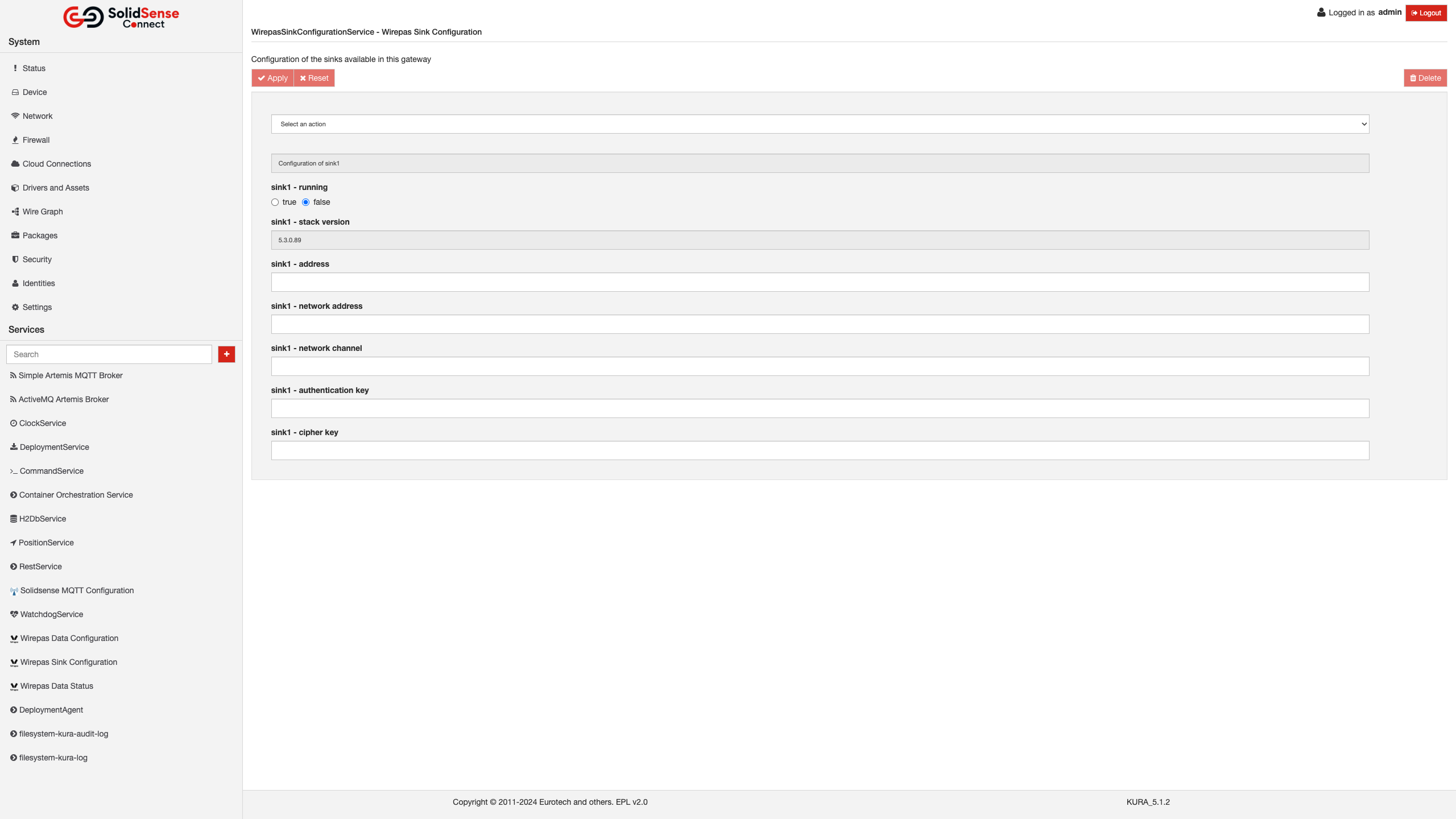
If you find that the sink is running (value is
true), change the “sink running” status tofalse. Ensure that you select the “Configure sink1” option from the drop-down before pressing Apply.Re-establish the SSH connection, and type the following commands to erase history from the system. At this point, it is also worth running
usb-devicesto ensure that the Quectel EG-25G module is visible (sanity check, if you are configuring the LTE version of the device). Finally, we issue the configuration reset one more time:
$ history -c
$ sudo su
# /bin/bash
# cd /data/solidsense
# rm -rf ct-s-openocd-wirepas.zip wirepas.hex dualmcu* xpack* nrf52833.cfg SolidSense-conf-custom.yml
# history -c
# /opt/SolidSense/bin/restart --config
The gateway will restart once again (after the previous command). Wait until the web interface is available. Attempt to login with the username
adminand passwordadmin. This is just to verify whether the username/password have been reset again. Do not change the password. The gateway is now ready for shipping. It is safe to unplug the device from power.